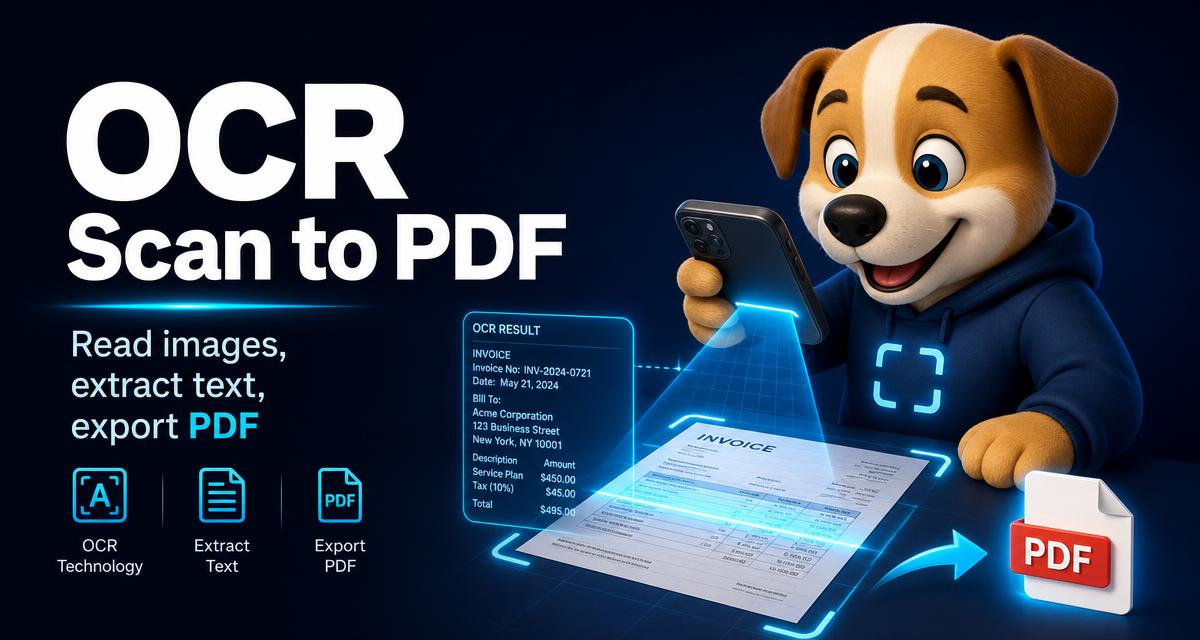
OCR scan to PDF: read images, extract text, export summaries
Point your camera at a bill, form, note or slide. Jarvis AI reads it, explains it, shows exactly where the text came from, and gives you a downloadable summary.
What can Jarvis scan?
Photos and screenshots, plus PDF, DOCX and CSV files. On mobile you can capture directly with “Scan with camera”, and previews appear as chips before you send.
What does the analysis include?
Three parts: What I see, What it means, and the full extracted text — in the language of the document.
Can I see which part of the image the text came from?
Yes. The full-screen viewer supports pinch-zoom, page navigation and OCR highlighting that draws boxes over the regions each piece of text was read from.
How do I improve OCR accuracy?
Open the scan settings to choose the OCR language and apply contrast, deskew, grayscale or text-sharpening preprocessing — helpful for receipts, handwriting and photographed pages.
Can I download the result as a PDF?
Yes. After each analysis you can export a scan summary PDF containing what Jarvis saw, what it means, and the extracted text.
Can I ask questions about the scan afterwards?
Yes. Jarvis keeps the last scan in context, so follow-up questions are answered against the same file — and you can send them to Deep Research for outside sources.
Scan your first document
Open Jarvis AI and tap the paperclip. Upload troubleshooting lives in the help center.